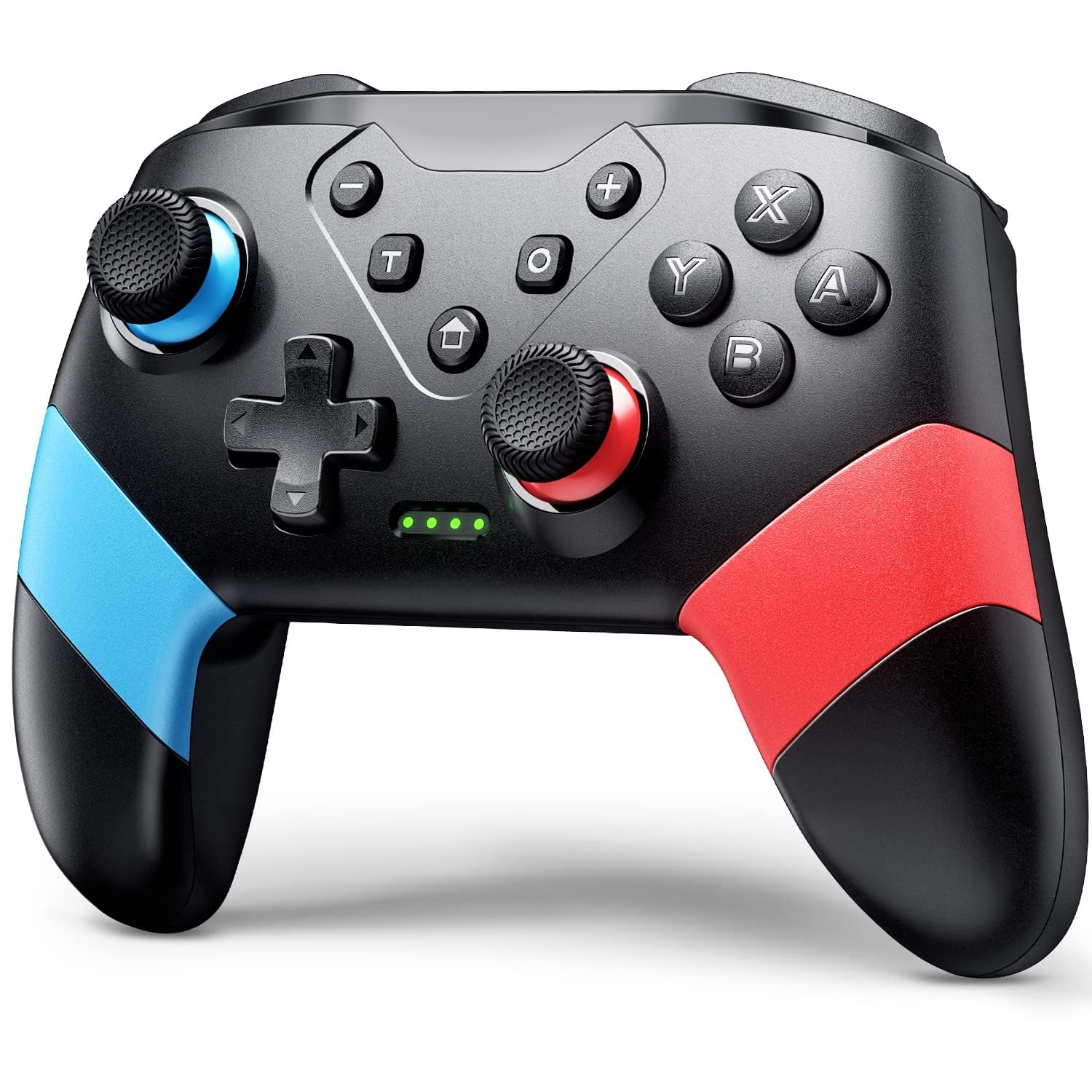


Product description


About the Extra Mappable Trigger M1/M2:
1. The back button on the controller is easy to program and adjust.
2. This controller can map up to 16 buttons.
3. You can map the M1/M2 button one by one.
4. Press M1/M2 and “—”: map only one button
5. Press M1/M2 and “+”: map the key combination
6. When you want to use the ultimate skill with one key in the games, you can set key combination.
7. The speed at which a key is mapped affects how quickly it reacts in-game.
Set:
(assuming you want to map the Y+B+A+L+R buttons on M1 button)
1. Press “M1” and “+” at the same time, and the lights on the controller will flash slowly;
2. Press the Y/B/A/L/R button on the controller one by one, and the indicator light will flash quickly
3. Finally press the M1 button, the indicator light will be on, indicating that the mapping is completed.
Cancel:
If you don’t want to use the mapping function of the M1/M2 buttons, your hands may habitually touch these two buttons, which will affect the game. Steps: Press and hold the “—” and “T” buttons for 3s, and after the wireless controller vibrates for 1s, the function is closed.
How To Connect?

Sync to Console:
1. In the N-SL main menu, click on ‘Controller’一’Change grip/sequence’, and enter the Controller pairing mode;
2. Press and hold the “Y”+HOME button for 4s to enter the pairing state. The LED flashes frequently. The controller is automatically paired with the console. After the connection is successful, the LED been on;
3. When the connection is successful, you can press the HOME button, and the LED will flash slowly in the form of a marquee and automatically reconnect.
Sync to PC with A USB Cable:
1. Use the USB cable to connect the gamepad and the computer. After connection, LED1 and LED4 of the gamepad flash slowly at the same time. Successfully connected, the gamepad can be normally used.
2. The controller defaults to Xinput mode on the PC side, and the keys are XBOX 360 key layout, non-standard PC key layout.
3. In XINPUT mode, hold down the screenshot button for 3 seconds to convert to DINPUT mode.
Compatible with Switch System: The switch controller is compatible with switch/lite/oled/PC windows (wired mode), works for 4 gamer; Switch pro controller is ideal for family fun, parties and nice gift for swtich game lovers (No amiibo)
Programming Custom Buttons: 2 mappable buttons on the switch controllers are designed to map up to 16 keys to M1/M2 key, you can click one key and get ultimate skill, extending buttons life; 3 burst speed enhances your experience in action and arcade game
Rumble Control & Gyro Sensor: Wireless switch controller has 4-level vibration; Enhanced dual motors provide you great game immersion; 6-axis gyro sensor makes the pro controller switch quickly detect the actions and help you make a quick response
Ergonomic & Long Time Play: Thousands of tests obtained scientific shape and weight to make the switch wireless controller suitable for long-term and comfortable holding; Large capacity battery last up to 15 hours of uninterrupted gaming
33ft Wireless Control: 33ft wireless control range allows players to stand/lie/sit to play games according to the situation; You will Get: 1 X Pro switch controller, 1 X Type-C cable, 1 X User manual, 1 X Packing box; Great gifts for friends and family
10 reviews for VOYEE Switch Controllers Compatible with Switch/Lite/OLED, Programming Wireless Pro Controller with Motion Control, Vibration, Wake-up, Turbo, Screenshot
Add a review
Original price was: $19.99.$16.99Current price is: $16.99.

Stephen de Serière Jr. –
Good Quality for a Low Price
I wasn’t sure what to expect because of the low price, but this controller exceeded my expectations. It feels solid, works smoothly with no noticeable lag, and all buttons respond well. The built-in rechargeable battery is also very convenient so I don’t have to keep swapping batteries. Definitely a great value.
Antonio Armada –
This is the #1 alternative to a first party controller
This is one of the best third party controllers I’ve ever used, especially considering the price (which was $16 for me at the time of purchase). The controller is comfy, I love how the ZL and ZR buttons are actually triggers akin to an Xbox controller. The nice pop of color is great too. Turbo function works great and even has 3 different speed settings to use in different scenarios. And it’s wireless too! Most other controllers like this are wired only. Highly recommend this controller!
Rosa I Trejo Valles –
Good controller for switch 2.
Very nice game controller, it’s a bang for the price, easy to connect to my Switch 2, battery life it’s ok for game many hours, and it’s comfortable in hands.
Sarah –
Works great but the thumbpads…
I have been using this controller for a long time now ever since my joycons began to drift. This controller works great and connects easily. I am even able to connect it to my PC wirelessly (even though I think it’s not supposed to be able to do that? but it’s a bonus!). My only issue is that the texture on the thumbpads makes it easy for them to get dirty (see picture). I personally would prefer if they were smooth like other controllers to prevent this issue. However, that is just my personal preference.
Mel –
Actually a pretty decent controller
Actually a really great controller for the price! Works great and pretty sturdy. The buttons are loud when you press them, but you just sound like you’re going crazy on someone so I’m not mad about it lol.It will automatically power off of your idle for too long (idk probably 30 mins or so), which is great for keeping my battery filled, especially if your an idler like me. Keeps a charge for a good amount of time and pretty sturdy.
Amazon Customer –
Good product
It’s a great cheaper cordless controller for the switch. It works well with all games. It’s worth buying if you don’t care about images on your controller or brand name.
Amazon Customer –
Guide on How to Use the VOYEE Switch Controller (Console Pairing, Turbo, Button Mapping)
Yes, the turbo works for the bench method in Pokemon Legends ZA for shiny hunting if you have a rubber band or something to press down on your control stick for you IRL. But no, it will not run macros for you. Here is a general guide on how to use this controller!********How to pair the controller to your Switch or Switch 2:********(Note: I was unable to do this while the controller was plugged in.)1. Turn on your console.2. On the home screen, click the Controllers icon at the bottom. (Looks like a joycon.)3. Select ‘Change Grip/Order’4. On your controller, press the ‘Home’ and ‘Y’ buttons simultaneously. You do not need to hold.5. Wait a moment. Green dots should move on the bottom of your controller. Once they have stopped moving and you see a controller has been connected, you can press A, then Home and leave that menu. Your controller is now paired!(If your controller goes to sleep due to inactivity, pressing the Home button again will wake it.)********How to use the Turbo function on this controller:********1. Press the ‘T’ button on your controller and the button you wish to be repetitively input into your game simultaneously. For example, if you want to press ‘A’ over and over again, press ‘T’ and ‘A’ at the same time. (You don’t have to hold–but you might have to try twice.)2. To change the speed of your input, press the ‘T’ button and the up or down button of your D-Pad simultaneously. ‘T’ and the up on your D-Pad will increase the speed. ‘T’ and the down on your D-Pad will decrease the speed.3. To turn off turbo inputs, press the ‘T’ button as well as the button that you originally selected for the input. For example, if you chose to have the ‘A’ button on turbo mode, then to turn this off you would need to press ‘T’ and ‘A’ simultaneously again.You can have turbo running for multiple buttons at once (A, B, Y, X, ZL, L, ZR, R). But it will not function for the M1, M2, +, -, D-pad buttons, or control stick clicks/directions. D-pad up and D-pad down are exclusively used to control the speed of Turbo.If you want to use turbo on one of the buttons in the category that is ineligible for Turbo, such as the + button, then you are able to circumvent the limitations by changing your button mapping.********How to change your button mapping:********1. Go to the home page of your console.2. Select ‘System Settings’ at the bottom (looks like a gear)3. Find the ‘Accessibility’ section4. Select ‘Button Mapping’ and ‘Edit Controller Mapping’ for your controller5. Change the mapping for one of the Turbo-eligible buttons (like R) to an ineligible Turbo-button output (like +) then save. This makes it so that if you use ‘T’ and ‘R’, instead of the R button output, you will get + as your turbo output.Buttons that turbo works on without any mapping needed:ABYXZLLZRRButtons that would require button mapping for turbo to work:D-Pad buttonsControl stick presses- and + buttons(Note that the ‘Button Mapping in Quick Settings’ toggle in System Settings allows you to access this menu by holding your Home button. Selecting ‘Reset Controller Mapping’ restores default settings for button mapping.)
Mr. T –
Good Controller, but should not be your Primary
This wireless controller is a decent controller for the price. The quality of the controller is not great but not terrible. It is very light weight and you can feel it has a lot of empty space under the plastic grips. The buttons are responsive and we have not had any issues with lag or buttons not working. We it them for a Nintendo Switch console and the pairing is easy by simply holding the “House” button in the middle of the controller. After a few seconds you should see the lights on the controller flash and it will lock into whatever player the controller was assigned. 1 light for 1st player, 2 lights for 2nd player, all the way up to 4 lights for 4th player. The controller is a bit noisy, in the sense that every time you press a button you can hear a rather loud plastic clacking sound.The size of the controller is on the larger side and the buttons are also big.The battery life has been great and last several days without needing to charge. Charging is quick and uses a standard USB C port.Overall, this is a good controller to have so that others can play together but you will probably not want to use this as your primary controllerLIKES:AffordableGreat Battery LifeBigger sizeGreat Battery LifeDISLIKES:Not the best qualityLoud Clacking sounds when you press buttons
Vini du Francis –
Embora seja mais leve que o original, não deixa a desejar quanto ao desempenho e não compromete a jogabilidade. O Modo turbo é um diferencial para a experiência.
Mohamed Saied –
عيبها انها تحتاج الي سلك للتوصيل علي الكمبيوتر