

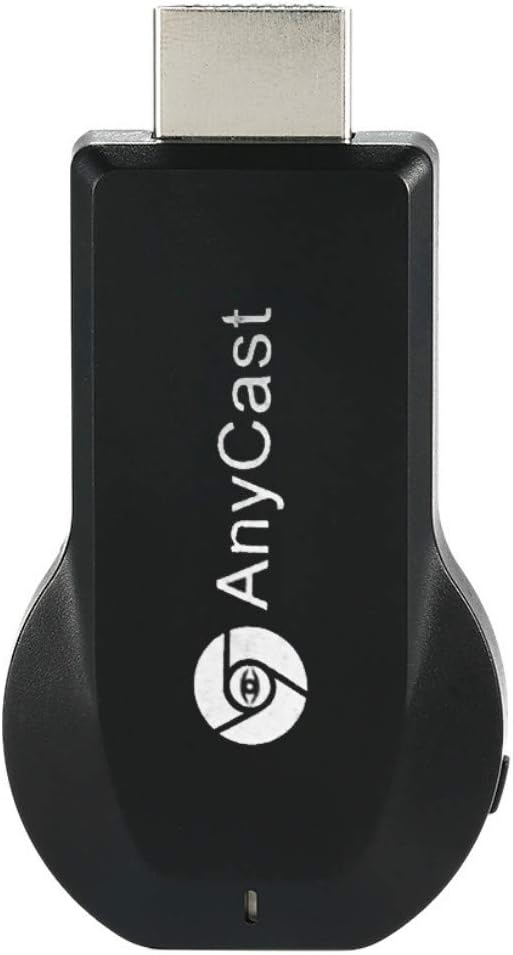
SmartSee Anycast HD Wireless Display Adapter WiFi 1080P Mobile Screen Mirroring Receiver Dongle for iPhone Mac iOS Android to TV Projector Support Miracast Airplay DLNA
$19.98
Related Products





Product description

Anycast M2 Wireless HD Display Receiver
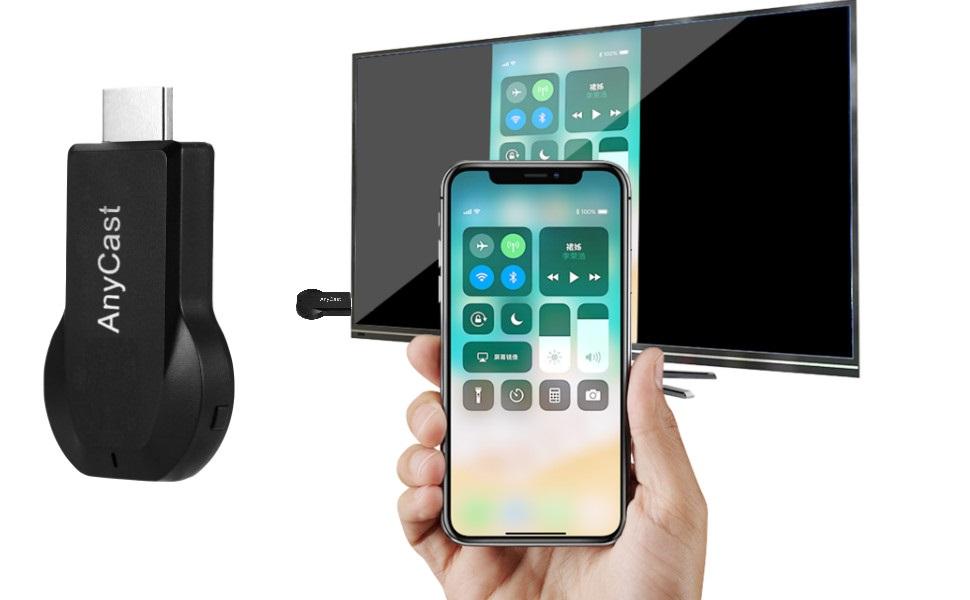
Turn your HDTV into a smart TV with SmartSee Wireless display adapter.
Anycast dongle – Mirror a small screen to a large screen wirelessly.
What is an HD Wireless Display Adapter?
An HD Wireless Display Adapter is to cast what you see on your mobile device(smartphone/tablet) to another big screen(TV/monitor/projector).
Please Note:
A small screen must be Airplay supported, or Miracast supported. Such as iOS and Mac OS devices are Airplay supported devices. Most Android devices and Windows devices are Miracast supported devices.
A large screen must be HD equipped, such as TV, projector, monitor etc.
An Anycast dongle can cast the screen of iOS, Mac OS, most Android devices and most Windows devices onto a HD TV, projector, monitor wirelessly.
(Note for Android and Windows users: Devices that do not support Miracast will not work with the Anycast dongle. Please refer to the Compatibility Table image or ask “ChatGPT” to check if your device is supported.)
Do I need this item?
Yes, everywhere.
At home: you can mirror your phone/tablet to your TV, no need to stare at the phone alone, watch TV together and free your hands.
At hotel: Setting the TV or TV box is a little troublesome? Just mirror your mobile device to TV or projector by using this item.
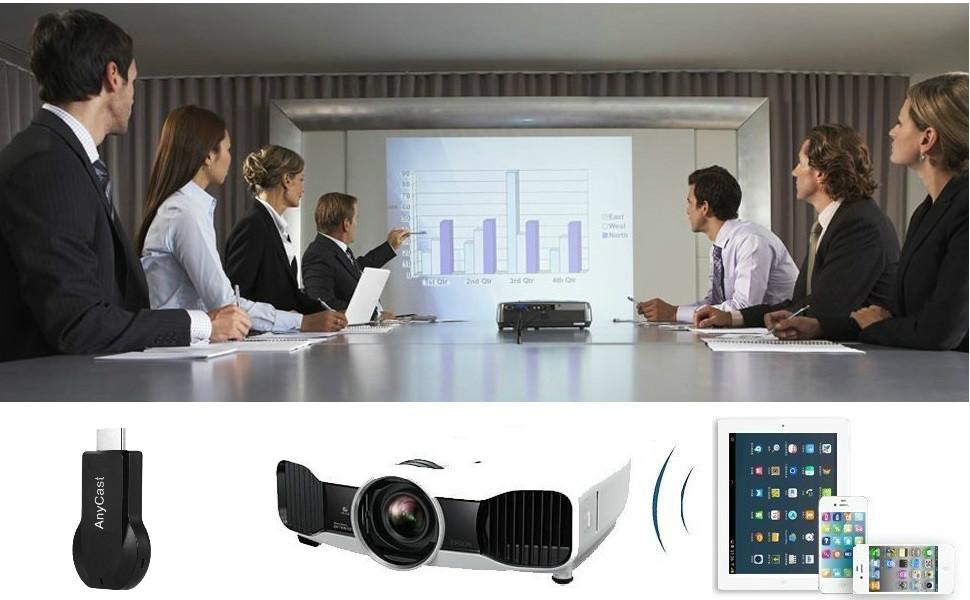
In a meeting room: No need other cables, just connect this item to mirror your tablet pc on your projector wirelessly.
In a classroom: Share your content of courses on big screen wirelessly.
Installation of Anycast Dongle on an HD display(TV/Projector/Monitor,etc):
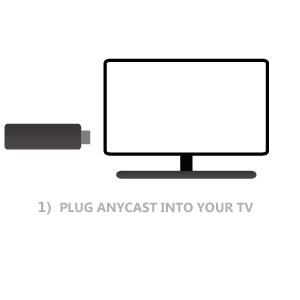
Plug Ancyast dongle into your hd display
Plug AnyCast dongle into HD port on TV and switch TV to the right input source.
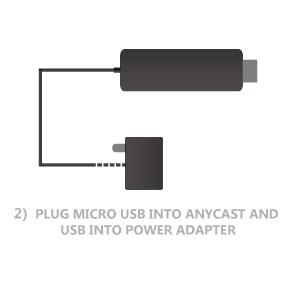
Plug USB cable for power supply
Connect WiFi cable (micro USB head) to AnyCast dongle. Plug USB cable into an external USB power adapter(power adapter is not inculded).
Anycast connected successfully
After connection, switch display to selected channel, and AnyCast page shows up on your display.
Connection Anycast Dongle with iOS Devices
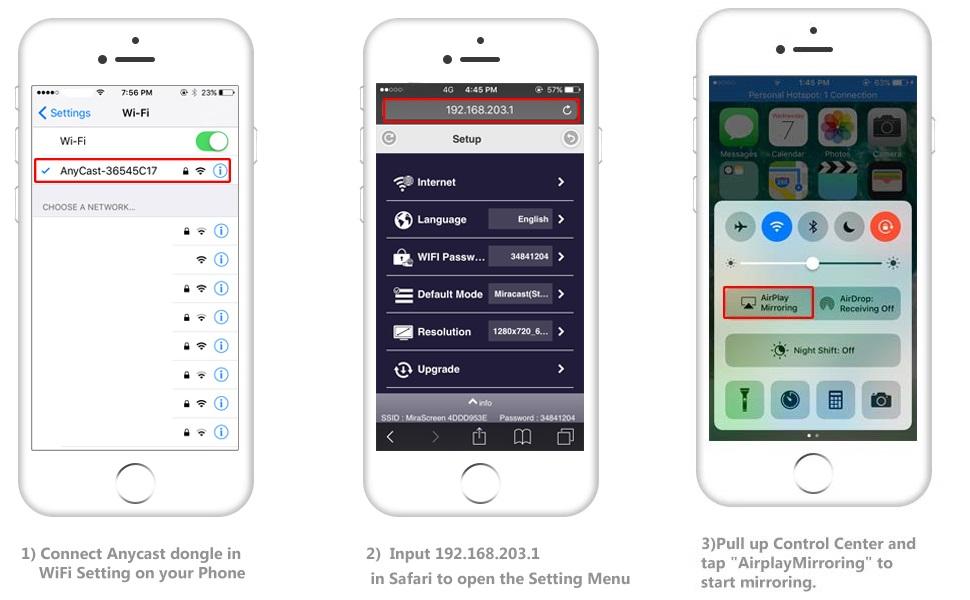
Setup on your for iPhone/iPad/Mac
Step 1: Connect AnyCast SSID in WiFi Setting on your for iPhone/ iPad/ Mac
Step 2: Go to Safari and input 192.168.203.1 to come to the setting menu and connect the dongle to your WiFi router
Note: In setting menu, you can connect your home wifi here by clicking “Internet” and Choosing your home Wifi to connect. Once connected, no need to reconnect again. Also, language , Anycast password, and Resolution can be changed by yourself in setting page.
Step 3: Pull up/down the Control Center on your phone and go to Airplay mirroring, then select AnyCast dongle to start to mirror.
Please note while use:
1. Once the Anycast dongle connects to your WiFi network successfully, your WiFi name shows up on the right top of your TV.
2. Once the Anycast dongle connects to your WiFi network successfully, the IP address 192.168.203.1 goes invalid, this generates a new IP address on your TV to access the Anycast setup page if needed.
3. Once the Anycast dongle and your phone are connected to the same WiFi network, do Screen Mirroring directly for next use, no need to other connection.
MOST IMPORTANT: If you dont have WiFi network, Please skip the Step 2, only do the Step 1 and Step 3 above. In this way, you use Cellular Data to access the Internet.
Connection Anycast Dongle with Android Devices
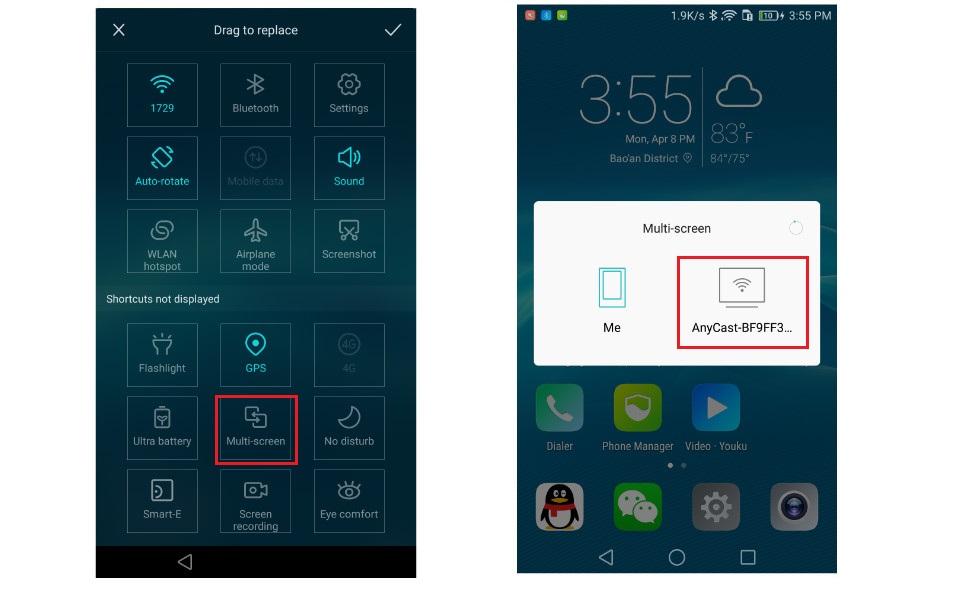
Setup on your Android devices
Step 1: Press the button on the dongle to switch to Android mode
Step 2: Access Miracast(wireless display/smartview/play to etc) on your Android device, and pair with Anycast to start mirror.
Please note for Android Users:
1. Miracast protocol has different names on different Android devices, please find your Miracast protocol correctly.
2. Not all Android devices support Miracast protocol, please check whether your phone supports Miracast protocol or not.
Setup on your Windows devices
Step 1: Press the button on the dongle to switch to Android mode
Step 2: On your Windows PC, press Windows + K, and choose AnyCast from the list to mirror your screen.
Then your windows screen will be mirrored on the TV.
Connect the Anycast dongle properly in correct mode, share screens easily and wirelessly.
Screen Mirroring Wirelessly for Business Education Home Entertainment
Notes: 1. Not compatible with the apps that have protocol protection, such as Netflix/ Amazon Video/ HBO go/ Hulu Plus sky go/DIRECTV etc
2. As of partial Android devices not support MiraCast protocol, no Miracast protocol no working, please do check whether your Android device supports Miracast or not.
Troubleshooting Notes:
Wroking Mode: Designs 2 modes in the mirroring dongle: Airplay Mode and Miracast Mode. It comes in Airplay Mode by default. If you use an Android device or a Windows device, switch to Miracast Mode by pressing the button on the dongle. Power Supply: Plug the USB charging cable into an external power adapter(no included) which offers 5V/1A power at least for stable connection.This is a 2.4G dongle. If there are both 2.4G and 5G network, your device may prioritize connecting to 5G network firstly. Connect your device to 2.4G network again after connecting the dongle to your local WiFi network.How to restart? Press and hold the button on the dongle for 3 seconds to restart it when switching to connect with differet OS devices.
Return Notes:
Returns can be made unconditionally within 30 days.
When returning the goods, please return all the product accessories to the original packaging box, so as not to affect the second sale.
Rather than returning the product, you prefer to figure out the proper usage?
Get in touch with the SmartSee TEAM.
SmarSee Wirelss Display Adapter is a technical product, it widely supports iOS, Android, Windows devices. Yet iOS, Android, Windows use different wireless protocol, and different protocol results in different connection, namely, connections are different on different devices.
We understand there are thousands different devices, no matter what device you use, only correct connection can reach the point. So once you are not sure about the connection, please check the User Manual. If the User Manual not indicates the connection of your device, please get in touch with SmartSee Team directly, we will tell the exact connection according to your device.
SmartSee Team is always here to support.
Add to Cart
Add to Cart
Add to Cart
Add to Cart
Add to Cart
Customer Reviews
4.0 out of 5 stars 59
4.1 out of 5 stars 34
—
3.6 out of 5 stars 118
3.6 out of 5 stars 459
Price
$69.99$69.99 $59.99$59.99 $229.99$229.99 $38.99$38.99 $29.98$29.98
Support Resolution
4K/1080P 4K/1080P 4K/1080P 4K/1080P 4K/1080P
Support WiFi Connection
No Need WiFi Setting. Support Running in dual band 2.4G and 5G network No Need WiFi Setting. Support Running in dual band 2.4G and 5G network. No Settings|True Plug n Play| Dual Band 2.4GHz&5GHz Supports all your wireless networks with Wi-Fi 802.11ac (2.4 GHz/5 GHz) 2.4GHz
Support System
USB C Equiped Phone Laptop Any HD Source HDMI devices: Windows Laptops, PS5, Camera, etc Android 5.0+, IOS 9.0+, Mac OS 10.0+, Windows 8+ Android 5.0+, IOS 9.0+, Mac OS 10.0+, Windows 8+
Features Support
Screen Mirroring and Extending No content limit. Support Netflix Prime Video, Sky Go, BT Sport, DIRECTV, HULU, Comcast TV, XFINITY, Vudu, Movistar, HBO and more. Whole screen mirroring and extending. No content limit. Support Airplay/MiraCast Mirroring/DLNA Streaming/Support Google Home app/Chrome Browser Casting Support Airplay/MiraCast Mirroring/DLNA Streaming/Support Google Home app/Chrome Browser Casting
Wireless display: SmartSee Wireless display adapter can mirror the screen of phone, tablet, laptop, pc to your TV/projector/monitor wirelessly. Share videos, photos, movies, files to a big screen easily. What shows on your screen can shows up on another big display. Cast a small screen to a large one. Make your TV a smart TV.
Easy to use: No App or drivers required. Only 3 steps to enjoy media on large screen: Plug->Connect->Mirroring by using Miracast, DLNA and Airplay mode. Recognize your IP address and match your local language automatically. While your mobile device is upgraded to the newest version, this adapter can be upgraded to be compatible with the newest version timely. Buy one, never worry about the version compatibility.
Wide Compatibility: Support Macbook series, iOS 9.0+, Android 5.0+, Windows 10 devices through Airplay, Miracast, DLNA protocol. Notes: 1. NOT supports for Google Pixel, not for Motorola. 2. Android and Windows devices must support the Miracast protocol for screen mirroring to work. 3. Not compatible with the apps that have protocol protection, such as Netflix/ Amazon Video/ HBO go/ Hulu Plus sky go/DIRECTV etc
Wide Usage: Watch with colleagues in meeting-Mirroring screen to projector, share PPT, mail, documents and other content wirelessly. Watch with students in classroom-Mirroring screen to big screen, share teaching content wirelessly. Watch with your family at home-Mirroring screen to TV, share photos, videos, movies wirelessly. Carry it while travelling, share your phone to TV anytime.
Regular OTA Update: We will regularly update the firmware from the cloud server to add features and improve compatibility, connect this dongle to your wifi and it will be upgraded automatically, so this dongle could be compatible with the newest version of your iOS/Android/Windows device anytime. When Apple or Android updates the system, our company will update the dongle version within one week. Only our company can do it in time in the market .
Notes on Usage: It has 2 Modes, Airplay Mode for all iOS devices, Miracast Mode for Android devices and Windows devices. Press the button on the product to switch modes according to your device system. Press and hold the button for 3-5 seconds to restart the dongle. Most connection issue can be fixed by restart. Detailed connection please check the detailed description below or the User Manual according to your device system.
13 reviews for SmartSee Anycast HD Wireless Display Adapter WiFi 1080P Mobile Screen Mirroring Receiver Dongle for iPhone Mac iOS Android to TV Projector Support Miracast Airplay DLNA
Add a review

$19.98
Viacheslav –
Best budget option for my car — mostly stable, occasional minor stutter
Using it in the car to mirror video from a smartphone for over a month.What I like:Does the job: image and audio quality are perfectly fine for the price.Easy setup; reconnects quickly after the first pairing.Compact—easy to tuck behind the screen/panel.Notes:I occasionally see brief stutters, seemingly more often in areas crowded with Wi-Fi networks. A steady 5V power source and avoiding “metal pockets” help.A very good low-cost wireless mirroring dongle for cars. Works well overall; minor hiccups are rare.
B. C. –
Does not work as described -requires WiFi to barely function
I purchased this device because the description said that it works without local WiFi. Unfortunately it will not allow streaming of any videos that I was able to find through the devices WiFi. After 15 minutes the device was incredibly hot to the touch. Audio only seems to cast fine. It sort of works without local local WiFi but there is a significant lag between the audio and video. It does require an external USB power supply so if you’re going to buy this you’ll want to purchase a USB extension cord for setup.
Frank leon –
Ver tu cel en el tv
Se ve con muy buena calidad y solo utilizo la internet del teléfono
Carl –
Works good with android, BUT
Works very good with my Samsung android phone. Haven’t tried Windows laptop yet but probably be the same.Problem is that Airplay is the default. I had it plugged into usb on the TV for power. When I turn off the TV, it loses power and defaults back to Airplay. Then you have to reach behind the TV and find the tiny button to switch it back to android. So now I have a usb type power supply plugged into a short extension cord for power because the supplied cord isn’t quite long enough to reach the outlet.In my opinion, it would have been much smarter to put a switch on it, instead of a tiny button so it would stay in android mode if wanted it to.
fresnel –
It works. Documentation is awful. And won’t work for all applications.
I bought it to be able to cast live streaming (football games on Fox Sports, etc.) from my iPhone, via cellular data, to a flatscreen TV at my deer lease during hunting season. Testing first at home showed how that particular use won’t work.The Good:• Plug it in, enter the password, and it simply works.• You don’t need Wi-Fi. Your mobile device communicates directly with the little Wi-Fi dongle that plugs into the device which then plugs into the HDMI port on your TV.The Bad:• Documentation , printed and online, is awful.• No advance warning that you need a 5V DC USB power supply to power the device.• The required password (12345678) is documented nowhere. However, if you are quick to catch it in a Chinese YouTube video, it works.The Other:• Many online video resources prevent casting streamed content to an external display. I guess they want to prevent bars from circumnavigating paying big licensing fees for rebroadcasting; this means my intended use won’t work.
Shawn Stephens –
Could never get this to connect.
I could never get this to connect to my phone. Scanning the QR code on the box takes you to a dead site. The linked YouTube video showing how to set it up shows a phone in Chinese that moves so fast there’s no way to tell what they were actually doing on the phone.Even the link within the YouTube description of the how-to video for updated videos goes to an unavailable site. As a result, I returned the item and would not recommend this to anybody else. This item was a waste of time and money.
Yashica Genre –
Exceed expectations.
I recently purchased the SmartSee Anycast HDMI Wireless Display Adapter, and I must say, it has exceeded my expectations! Setting it up was a breeze; I was able to connect my iPhone and Android devices to my TV in no time. The 1080P resolution provides a clear and crisp display, making it perfect for streaming movies and presentations, I appreciate the seamless screen mirroring feature, which allows me to share content from my mobile devices effortlessly.Overall, I highly recommend the SmartSee Anycast for anyone looking for an easy-to-use and effective wireless display solution. It’s a fantastic gadget for both personal entertainment and professional use!
Amanda W –
AnyCast mirroring device.
This does work, but it has some lag issues, and there is not many apps that work with this device. If you buy this product, it has a specific purpose in mind for its design, and the only way it can work smoothly is with an app that can connect an outside device to this “mirroring” device. And that’s not available. It’s just ridiculous to provide a product to the open public and not ensure its flawless functionality.
José baldemar alcaráz de los reyes –
Me funciono muy bien
NAGESWARA GANJI –
I recently started using the SmartSee Anycast HDMI adapter, and it has truly transformed how I connect devices to my TV. Streaming movies and sharing presentations in crisp 1080P is seamless and reliable. Its compatibility with various devices makes it perfect for both work and entertainment.
Swazzy –
I love this product, I had to install the app because my phone is older and doesn’t have mirroring, now I can even cast to TVs that have casting options without this casting device, but this casting device is cheap small and doesn’t listen to the household lol, I highly recommend it to upgrade any TV to a smart TV.
Paco mendez –
Falla mucho la conexión con el proyector
dave Mcil –
To much lag and lag between vid & sound. Went in the bin