


Capture Card for Nintendo Switch, 4K Audio Video Capture Card, USB C 3.0 1080P 60FPS HDMI Recorder for Gaming/Live Streaming/Video Conference, Works for Nintendo Switch 2/PS5/Xbox/OBS/Camera/PC
$39.99
Related Products






Product description

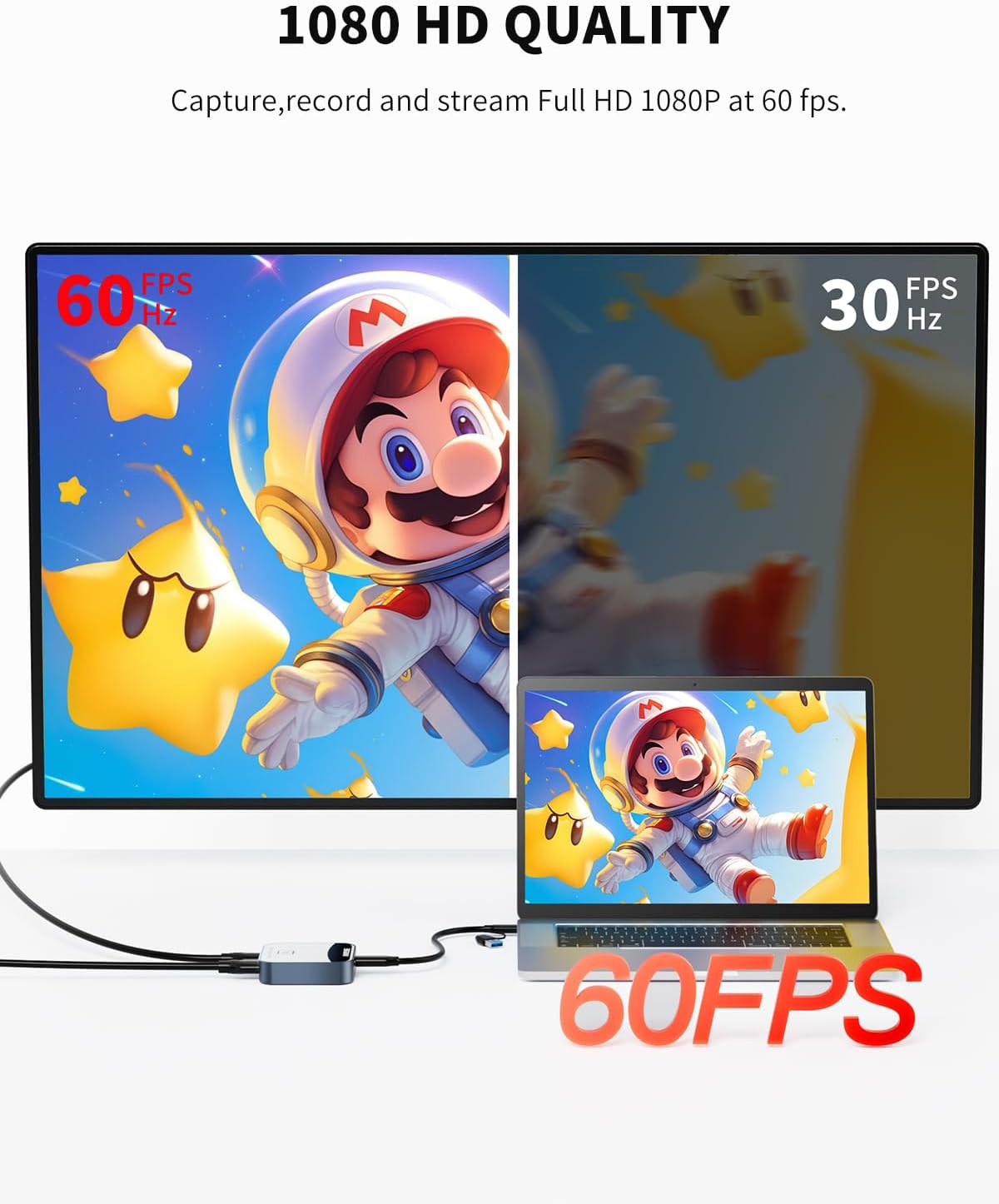
This versatile capture card supports 4K@30Hz input/pass-through and delivers 1080p@60fps streaming via USB 3.0 port. Featuring plug-and-play functionality, and broad OS compatibility (Windows/macOS/Android/Linux),it ensures studio-quality video capture for consoles like Nintendo Switch/ Switch 2.


1 For Nintendo Switch 2 For DSLR 3 For PS5 4 For Xbox One 5 For Tablet


1 4K@30Hz Pass Through
2 Cutting-Edge Chips
3 Low Latency
4 Universal Compatibility


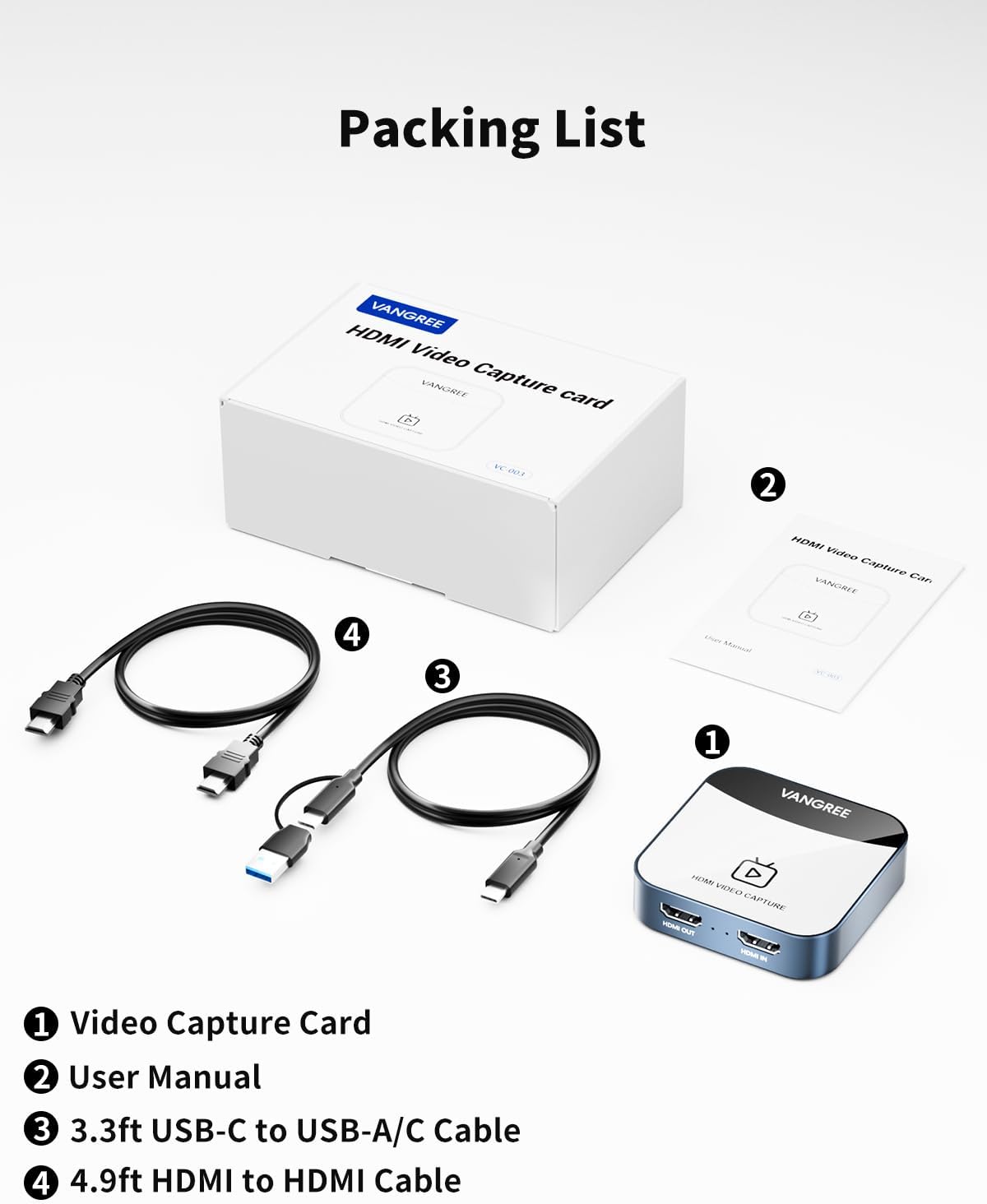
1 What You Get
2 Wiring Guide
3 USB-A/C Connector


Is it necessary to download professional software such as OBS/Vmix/Potplayer for video capture and recording?
MacOS system users can use QuickTime Player for video recording/capture. Windows system users can use the built-in screen recording function on their PC. Professional capture/recording/streaming software such as OBS/Vmix/Potplayer can also be used.
How to solve the problem of being able to capture images but unable to capture sound/audio?
Firstly, make sure to select “VC-003” for the “audio output” of the video input device, and then select “VC-003” for the “audio input” of the video capture device. Secondly, in OBS, click on “Audio Input Capture” and follow the prompts to set it up.
Why cannot it be achieved 4K@30Hz Pass-through(Loop-out) Parameter?
Firstly, ensure that both the input source and output device support 4K parameters. Secondly, use original USB cables and HDMI cables. Thirdly, try connecting HDMI OUT first, confirm the display shows, and then connect the cable to the PC for capture
How to solve the problem of whistling/sharp sound when the capture card is connected to the PC?
Check the OBS software settings of the input PC and the PC for capture. Open “Advanced audio properties” and change the “microphone/Aux” section to “Monitor Off”.
Can an Android phone/iPad Pro tablet use a video capture card?
“USB Camera” app such as “CamX/MoniCon” is required for Android phone/iPad Pro tablet to capture.
【4K@30Hz Signal Input & Pass-Through】Supports HDMI input and pass-through up to 4K@30Hz, with 1080p@60fps streaming via USB-C 3.0. It delivers crisp, lag-free video for smooth gameplay recording and real-time display – perfect for capturing every gaming highlight in stunning clarity.
【1080p60 High Definition Capture with Scaling】Records and streams at up to 1080p60 with hardware-accelerated scaling. It accepts 4K@30Hz input and works seamlessly with OBS, XSplit, and more. Ideal for gamers, streamers, and professionals needing high-quality video capture for live broadcasts or meetings.
【Plug & Play – No Drivers Needed】Truly plug-and-play – no software or drivers required. It is compatible with Windows, macOS, Linux, and Android, and works instantly with OBS Studio, XSplit, and PotPlayer. Compact and portable, it also works with Nintendo Switch, Nintendo Switch 2, PS5, Xbox Series X/S, and PC-ideal for versatile streaming needs. Note: iOS/Android devices require camera apps like CamX or MoniCon for use with phones/tablets.
【Ultra-Low Latency for Real-Time Play】Engineered for near-zero latency on the pass-through signal, ensuring your gameplay display stays perfectly in sync. It eliminates distracting lag, so your reactions remain sharp during streaming, recording, or competitive gaming.
【YUY2 4:4:4 1080p60 Uncompressed Video】Captures 1080p60 video in YUY2 (YUV 4:4:4), an uncompressed format that preserves full color detail and luma-chroma separation. It produces no compression artifacts – ideal for high-fidelity recording and professional-grade video production.
8 reviews for Capture Card for Nintendo Switch, 4K Audio Video Capture Card, USB C 3.0 1080P 60FPS HDMI Recorder for Gaming/Live Streaming/Video Conference, Works for Nintendo Switch 2/PS5/Xbox/OBS/Camera/PC
Add a review

$39.99
Jam –
Good for the price point
Seems to be pretty good despite the price being on the cheaper end. Haven’t noticed any lag or audio problems at all, and the setup was pretty simple even though i’m sorta tech illiterate. If you’re more invested in streaming it’s probably better to get something pro, but for me just streaming to a couple of friends and not wanting to drop a lot on something more than what i need, it’s perfect. 👍
ShamicaATX –
Works great
My son received this as a birthday present and he loves it. The instructions are not too bad to follow but they could be a tiny bit more clear. When we finally got it set up, we had to figure out how to record the audio because that part wasn’t clear in the directions. But other than that, it works great!
Lucas –
Pretty good! One Con
It was a little difficult to set up, no real directions saying to plug it into the computer or laptop first. Other than that, the audio is good the resolution is good and overall it’s a very good product! If there were a little bit more clear instructions it would get 5 stars.
Breanna McKamey –
Great Customer Service
My original product stopped working a couple of months after buying it and Vangree reached out to me and replaced the product at no extra charge, even though it was after the return window had closed. Their customer service was excellent and the replacement product so far works great!
StudioEphrenia –
So far I love it! I stream on Discord to friends
I wanted something to show my friends on Discord what I’m playing and this is perfect for that!Even if you’re not a streamer, just sharing what you’re doing with your friends is fun.A little advice if you want to set it up for Discord streaming (This works best with multiple monitors:1. Use OBS and create a “Video Capture Device” and set it for the capture card (mine was called VC-003)2. In the properties of the Capture Device in OBS, set “Audio Output Mode” to “Capture audio only”. check the box for “use custom audio device” and select under “Audio Device” the option “Digital Audio Interface (VC-003)”3. In the audio level bar for the capture card in “Audio Mixer” select the gear and choose “Advanced Settings” in the Advanced Settings under “Audio Monitoring” select “Monitor Only (mute output)”. This will allow you to hear the game audio through your headset it’s native quality.4. Start your switch game and when you can see it in obs, right click the window and select “full screen projector source” and choose the monitor that has obs. This will make the game screen full-screen.5. In Discord you can now stream the full screen from Obs and the audio of the game will come through as well. You can then switch your monitor/tv input to the switch.Good luck!
Kristen –
Great value
Great for streaming my Nintendo switch through OBS to Discord. Simple setup and great value for the money.
Brody –
Very Good
Easy to use. Can be either USB or USBC connection. Good quality when streaming.
IAmChaos5683 –
Broke After A Week
Broke after a week of using it. After everything is plugged in the screen flashes and audio skips. I switched around cords and even swapped them all for new cords. It’s the device itself. Now recording videos for YouTube is going to have to wait…